Pain point: Timezone math creates small mistakes that cost real viewers: one copied time can be wrong, unclear, or easy to miss on mobile.
Practical takeaway: Use one source timezone for planning, then give fans a page that shows the stream in their own local time.
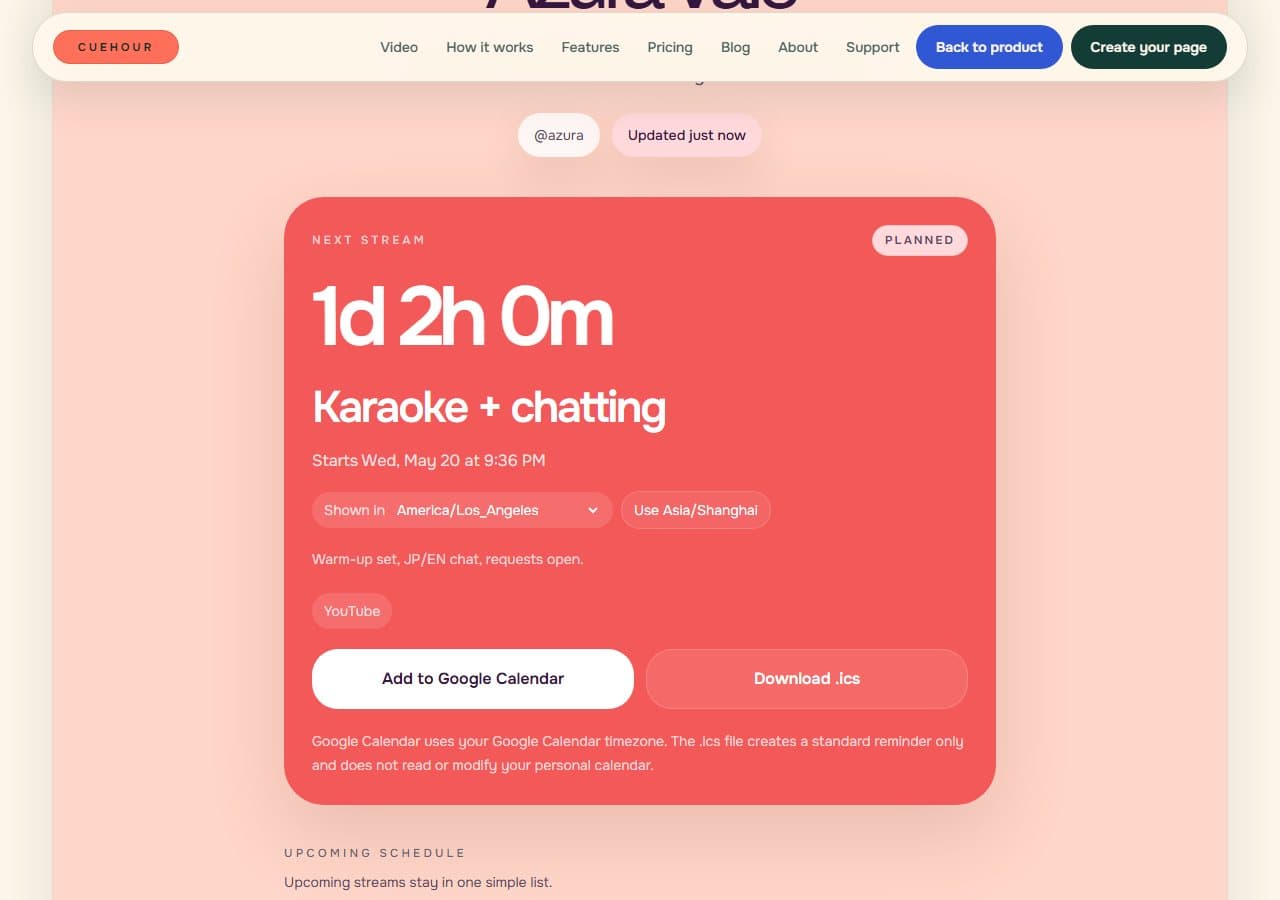
Pick one source timezone for planning
Start by choosing the timezone you use when planning the stream. For most creators, that is your own local timezone. For collabs, it might be the host's timezone or the timezone used in the shared planning doc.
The important part is consistency. If you create one stream in PST, another in JST, and another in UTC without labeling them clearly, it becomes harder to check whether your announcements match.
Use an IANA timezone such as America/Los_Angeles or Asia/Tokyo when the tool supports it. Abbreviations like PST, EST, JST, and GMT are familiar, but they can be ambiguous, seasonal, or easy to copy without the date context.
Do not ask every fan to convert the time
Writing several timezones in one post can help, but it does not scale well. It also leaves out fans in regions you did not list and makes every edit more fragile.
A better pattern is to publish the event once, then let the viewer see the time in their own timezone when they open the schedule page.
This matters because fans usually decide from a small screen. A post with five converted times can be hard to scan, while a schedule page can show the selected local time next to the stream details.
- Use timezone names like America/Los_Angeles or Asia/Tokyo when editing
- Show the viewer's local time on the public page
- Keep the original source timezone available for double-checking
- Make timezone switching obvious for fans planning with friends
Use local time where the fan is deciding
Fans usually make the decision from a phone screen. They might be checking your next stream while scrolling X, opening Discord, or reading a YouTube description.
That is the moment when local time matters. If the page says the stream starts at 8:00 PM in the viewer's timezone, they can decide immediately whether they can make it.
Keep the source timezone available for double-checking, but do not make it the main answer for every fan. The main answer should be the time where the fan lives or the timezone they manually choose.
Check the announcement before publishing
Before you post, open the public schedule page and switch to at least two major audience timezones. If you stream from Japan, check a North America timezone and a Europe timezone. If you stream from North America, check Europe and Southeast Asia.
This catches common mistakes: wrong day after midnight, daylight saving differences, copied AM/PM errors, and collab times that were planned from a different source timezone.
- Confirm the source timezone used in the editor
- Check the date as well as the hour
- Switch to one fan timezone on another continent
- Use the calendar link to confirm the reminder title and time
Keep updates tied to the same URL
Timezone clarity breaks down when a stream moves and old posts stay online. If you update a graphic, the old version may still be pinned, copied, or embedded somewhere.
A live schedule link gives you one place to correct the time. Every channel that already points to that link can keep sending fans to the latest version.
When a stream moves, update the event status and time first, then post the context. That order reduces the window where fans see a fresh post but an old schedule.
Common questions
Should you list multiple timezones in the social post? It is fine to list one or two important timezones, but the schedule link should handle the full global audience.
What about daylight saving time? Use named timezones instead of fixed offsets where possible. A named timezone can account for daylight saving rules, while a copied UTC offset may become wrong later.
What if fans plan with friends in another country? Give them a timezone selector so they can switch from their browser timezone to the friend's timezone without leaving the page.
Try it from another timezone
Open the Cuehour demo and switch the display timezone. The point is simple: fans should not need to know your source timezone to understand when the next stream starts for them.
Cuehour demo
See the schedule page fans open.
Open the live example to see local time, status, and reminder actions from the fan side. When you are ready, create your own free schedule page and share one stable link.
Keep reading
Creator workflow
How to Make a VTuber Stream Schedule Page
A practical guide to building one live VTuber schedule page that fans can open from any bio, post, or Discord announcement.
Schedule reliability
Why Weekly Schedule Images Go Stale
Weekly schedule images look good in a feed, but they break down when stream times, titles, platforms, or status change.