Pain point: A weekly image is easy to share once, but it becomes hard to trust after a stream moves, gets canceled, or changes platform.
Practical takeaway: Your schedule page should act like the source of truth: one URL, current stream details, local time, and reminder actions.
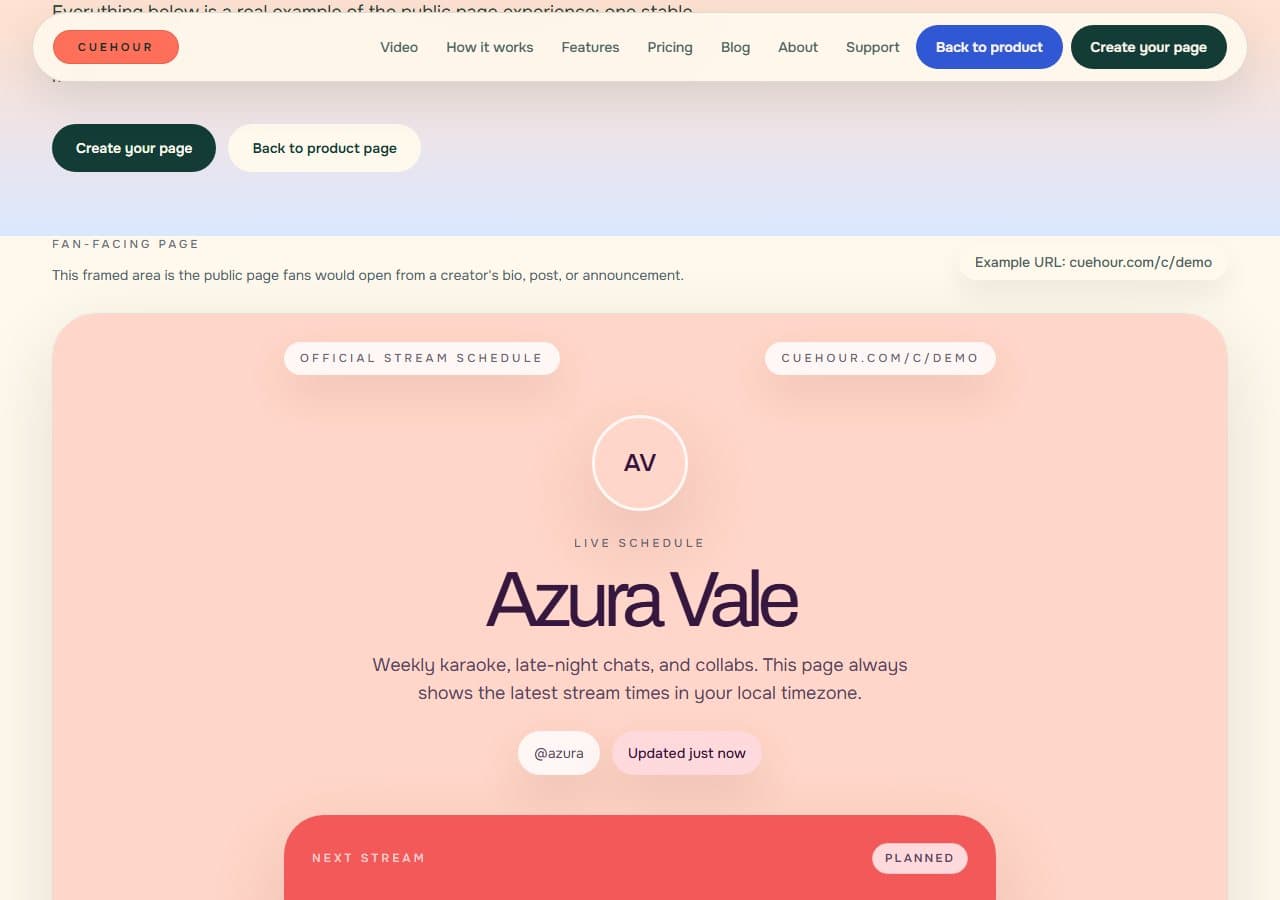
Start with the job your page needs to do
A stream schedule page is not just a prettier version of a weekly graphic. Its job is to answer the fan's next question quickly: when is the next stream, where is it happening, and what time is that for me?
That matters most for VTubers with audiences across regions. A fan might find your schedule from a pinned X post, a YouTube description, a Discord announcement, or a Twitch panel. The page should make the answer feel the same in every place.
Before choosing colors, layout, or extra links, write down the exact answer a fan should get in the first few seconds. Usually it is the next stream title, start time, platform, status, and a reminder action. Everything else should support that answer.
Set up the page in the right order
The simplest setup starts with your public identity. Use the creator name fans already recognize, a short intro, your default planning timezone, and a handle that is easy to read in a bio or Discord message.
After that, add the next few streams instead of trying to rebuild your whole history. A useful first version can be just one upcoming stream with a clear title, platform, start time, and status. Once the link is live, add more events as your weekly plan settles.
- Claim a readable public handle
- Add your creator name, avatar, intro, and default timezone
- Create the next stream with title, platform, date, time, and source timezone
- Check the public page from a phone before sharing it
- Put the same link in your bio, pinned post, Discord, Twitch panel, and YouTube descriptions
Include the details fans actually check
Keep the top of the page focused on the next stream. The title, platform, status, date, time, and timezone should be visible before a fan has to hunt through older announcements.
You can add personality through your name, avatar, intro, and theme, but do not let those details push the schedule below the fold on mobile.
If your stream might move, status matters as much as the time. Planned, rescheduled, surprise, and canceled states help fans trust that the page is current instead of guessing whether an old announcement still applies.
- Creator name and recognizable avatar
- The next stream title and platform
- Start time in the viewer's local timezone
- Status such as live, scheduled, rescheduled, or canceled
- Calendar actions for fans who want a reminder
Use one stable link everywhere
The main advantage of a live schedule page is that the URL does not need to change every week. Put the same link in your bio, pinned post, Discord server, YouTube descriptions, Twitch panel, and collab messages.
When your plans change, update the page once. Old announcements can still point fans to the current schedule instead of leaving them with an outdated image.
This is especially useful for collabs. Guests can share the same schedule URL, and you do not need to send everyone a new image if a start time changes by an hour.
Give fans a reminder action
A schedule is more useful when fans can act on it. Google Calendar and .ics reminder links help viewers save the stream in the calendar app they already use.
Make those actions clear. Fans should know whether they are opening Google Calendar, downloading a calendar file, or jumping to the stream platform.
Do not hide reminder links behind vague labels. Names like Add to Google Calendar and Download .ics make the action clear, and they also reduce anxiety for fans who do not want a page to access their personal calendar.
Common questions
Do you still need a weekly schedule image? You can keep using one for reach. Treat the image as the social post and the schedule page as the source of truth fans check later.
How many streams should be on the page? Start with the next stream and add the rest of the week when the plan is stable. A short accurate schedule is better than a complete schedule that goes stale.
Where should the link go? Put it anywhere fans may look after the original post is old: bio, pinned post, Discord resource channel, YouTube descriptions, Twitch panels, and collab messages.
Try the Cuehour version
Cuehour gives creators a public schedule page with a stable URL, local timezone display, and calendar reminder actions. You can use the live demo to see the fan view before creating your own page.
Cuehour demo
See the schedule page fans open.
Open the live example to see local time, status, and reminder actions from the fan side. When you are ready, create your own free schedule page and share one stable link.
Keep reading
Timezone tips
How to Share Stream Times Across Time Zones
How to announce stream times for global fans without making viewers convert PST, EST, JST, GMT, or UTC by hand.
Schedule reliability
Why Weekly Schedule Images Go Stale
Weekly schedule images look good in a feed, but they break down when stream times, titles, platforms, or status change.